
You scanned some papers, the PDF is 30 MB, and the email or the upload form says no. This guide explains why that file is so large and gives you a method you can use on any PDF, with the numbers worked out so you can predict the result before you try it.
What makes a PDF large
A PDF is a container. Inside it there can be text, fonts, drawings (vector graphics), pictures and extra data such as bookmarks, comments and form fields. These parts are very different in weight:
- Text is stored as characters, so a page of text is tiny.
- Fonts are embedded so the document looks the same everywhere. A professional tutorial that measured one document found its embedded fonts took only about 19 KB, which was 0.04% of the file.
- Pictures are stored as pixels. This is the heavy part. Dartmouth's IT guide to Acrobat says the Reduce File Size command works by resampling and recompressing images, which is why it helps most on PDFs that are mostly pictures, such as scans.
- Extras such as comments, hidden layers, embedded thumbnails and search indexes add some weight. Acrobat can discard them.
A scanned PDF is the extreme case: every page is one big picture of the paper. That is why a 10-page scan can be larger than a 200-page report written in Word. The size has nothing to do with how much is printed on the page; it depends on how many pixels were captured and how they were stored.
A short history: why PDF files are so easy to share, and so easy to bloat
- 1990. Adobe co-founder John Warnock wrote a paper called "The Camelot Project", describing a file that would look the same on any computer. TechRadar dates the paper to 31 August 1990 (some other sources give 1991 for the start of the project).
- 1993. Adobe introduced PDF. It stayed a proprietary format controlled by Adobe for many years.
- 1 July 2008. PDF 1.7 was published by ISO as ISO 32000-1, an open standard that anyone can implement.
- 2017. PDF 2.0 (ISO 32000-2) followed, the first version developed entirely inside ISO.
The design goal was a document that looks identical everywhere, so PDF keeps the fonts, the images and the layout inside the file. That is its strength, and it is also why a PDF made from a camera or scanner carries every pixel along with it.
The pixel maths that decides your file size
Resolution is measured in dpi (dots per inch; for screens it is often written ppi, pixels per inch). The number of pixels on a page is the width in inches times dpi, multiplied by the height in inches times dpi. Because dpi appears in both directions, doubling it multiplies the pixels by 2 × 2 = 4.
| Resolution | Pixels (width × height) | Total | Compared with 150 dpi |
|---|---|---|---|
| 150 dpi | 1,240 × 1,754 | 2.2 million | ×1 |
| 300 dpi | 2,480 × 3,508 | 8.7 million | ×4 |
| 600 dpi | 4,961 × 7,016 | 34.8 million | ×16 |
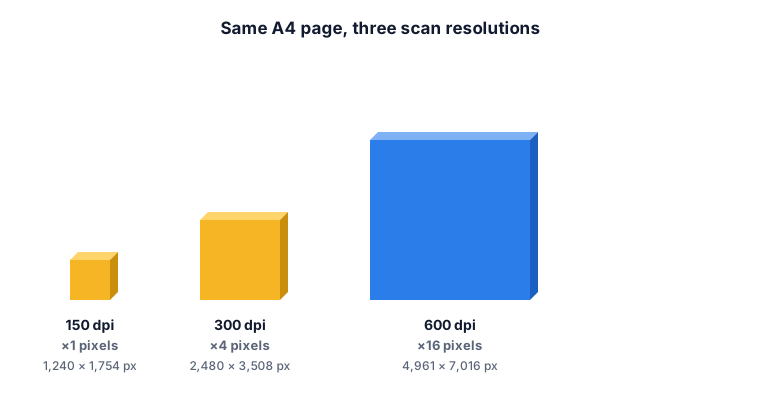
If every pixel were stored in full colour (3 bytes), an A4 page at 300 dpi would be 8.7 million × 3 = about 26 MB before any compression. JPEG compression brings that down a great deal, but the starting point shows why resolution matters so much.
What real scanned pages weigh
Fujitsu publishes estimated sizes for one A4 page scanned to PDF. The table below uses the manufacturer's "No compression" column (its higher quality rates give larger files). These are estimates for a typical page, but they show the pattern clearly:
| Resolution | Colour | Grayscale | Black and white |
|---|---|---|---|
| 150 dpi | 101 KB | 85.3 KB | 16.3 KB |
| 300 dpi | 339 KB | 305 KB | 57.1 KB |
| 600 dpi | 1.68 MB | 1.41 MB | 262 KB |
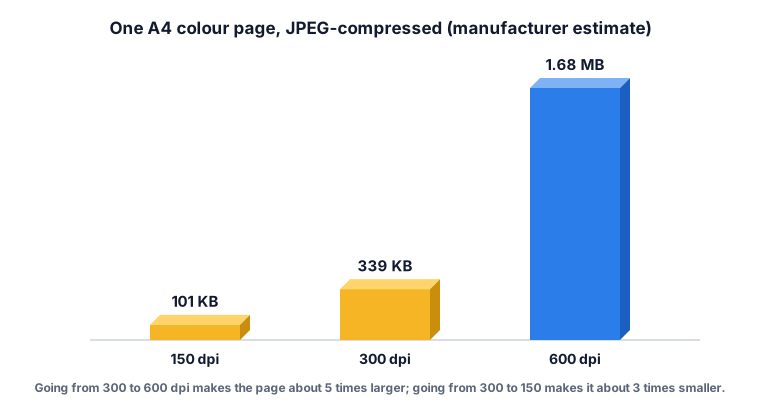
Read the table like this. Going from 150 to 300 dpi multiplies the colour page by 339 ÷ 101 = about 3.4 (not exactly 4, because the figures are manufacturer estimates and not a pure pixel count). Going from 300 to 600 dpi multiplies it by 1,680 ÷ 339 = about 5. In black and white, 300 dpi is 3.5 times larger than 150 dpi (57.1 ÷ 16.3).
Other scanning guides report larger numbers for phone photos and default scanner settings, often several MB per page. Mapsoft, for example, quotes about 150 to 350 KB for a 300 dpi colour page of typed text but 500 KB to 1 MB at 600 dpi, lower than Fujitsu's 1.68 MB. Sizes depend heavily on the scanner's compression, the paper and the content. Use these figures to compare settings with each other, not as a promise for your file.
The four levers that shrink a PDF
Every compression tool, from Adobe Acrobat to a free web page, pulls the same levers. Knowing them tells you what to expect.
- Lower the resolution (downsample). This is the biggest lever, by the maths above. Practical advice from scanning guides: Mapsoft calls 150 dpi fine for screen viewing only and suggests 150 to 200 dpi for email, while 300 dpi is the usual standard for print and for pages you want to run through OCR (the University of Illinois recommends 300 ppi for documents with small type).
- Stronger JPEG compression. JPEG is a lossy format: it throws away detail your eye is least likely to miss, and a lower quality setting throws away more. Moderate settings are hard to tell apart on screen; very low ones show blocky patches around text.
- Grayscale instead of colour. If the document has no colour that matters (a contract, a letter, a transcript), grayscale saves a little (305 KB instead of 339 KB at 300 dpi in the table). Black and white scans are much smaller still, but that is a scanner setting, not something you can safely switch on afterwards for pages with shading or stamps.
- Remove what you do not need. Delete blank pages, comments, hidden layers and embedded thumbnails. Acrobat's Reduce File Size command (as described by Dartmouth IT) also removes embedded base-14 fonts, subsets the fonts that stay and cleans up internal structure. Do not remove ordinary embedded fonts: the saving is tiny and the text may change on other computers.
Worked example 1: a 10-page colour scan
A 10-page scan at 300 dpi in colour. Using the table: 10 × 339 KB = 3,390 KB, about 3.4 MB. You need it as small as you can reasonably get it.
- Lower the resolution from 300 to 150 dpi: 10 × 101 KB = 1,010 KB.
- Switch to grayscale because the pages are black text on white paper: 10 × 85.3 KB = 853 KB.
- Compare: 853 ÷ 3,390 = 0.25, so the file is about 75% smaller.
Sense check: you cut the pixels to a quarter and the colour data to a third (gray is one value per pixel instead of three, but JPEG already shrinks colour well), so a result near one quarter is believable.
Worked example 2: the common mistake of "maximum quality, to be safe"
Someone scans 5 pages at 600 dpi colour "to be safe": 5 × 1.68 MB = 8.4 MB. At 300 dpi the same pages are 5 × 339 KB = 1,695 KB, about 1.7 MB, nearly 5 times smaller, and for ordinary text on a screen or an office printer the extra detail at 600 dpi is not visible. The safe choice is not the largest dpi; it is the dpi that matches how the file will be used. For an even smaller file: 5 × 101 KB = 505 KB at 150 dpi, which is 70% smaller than the 300 dpi file (505 ÷ 1,695 = 0.30).
Worked example 3: will it fit in the email?
Gmail's limit is 25 MB for the attachments of one outgoing message. But email turns attachments into text (base64 encoding), which makes them about one third bigger, so a file of 20 MB becomes 20 × 4 ÷ 3 = 26.7 MB inside the message and is refused. The largest file that just fits is 25 × 3 ÷ 4 = 18.75 MB. Real messages also carry line breaks and headers, and some sources put the overhead nearer 37%, which would allow only about 18.2 MB, so aiming a little lower is wise.
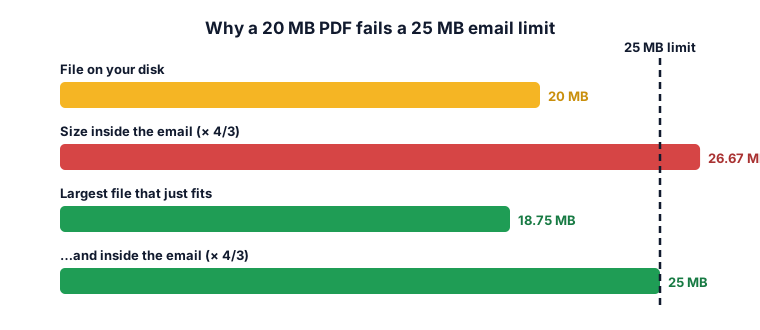
Now your 30 MB scan. Keep a small safety margin and aim for 18 MB. 18 ÷ 30 = 0.60, so the file must become at least 40% smaller. Halving the dpi alone (30 MB to roughly 9 MB or less, by the table's pattern) is more than enough.
| Service | Limit |
|---|---|
| Gmail | 25 MB sent (50 MB received) |
| Yahoo Mail | 25 MB |
| Outlook.com | 20 MB per Microsoft's Outlook help, message and attachments together (some other sources state 25 MB, so plan for 20) |
| iCloud Mail | 20 MB |
| Microsoft 365 / Exchange | Set by the administrator: Microsoft's Outlook help gives 10 MB as the default for Exchange accounts, and Exchange Online can be configured up to 150 MB |
Many job portals and government forms use much smaller limits, often a few MB or less. The rule is the same: read the limit, then work back to the dpi that fits.
What the ZYSNOR Compress PDF tool actually does
The tool runs in your browser, so your file is not uploaded. It offers two modes, because a PDF can be big for two different reasons:
- Smallest file (as images). Each page is drawn as a picture and saved as a JPEG. This gives the smallest result and works on any PDF, but the text stops being selectable, and links and form fields are lost. Use it for scans, where there was never any real text.
- Keep text (photos shrink). The text and drawings are left untouched. Only embedded JPEG pictures larger than about 30 KB are re-encoded, scaled down to at most 1,600 pixels on the longer side, and only kept when that makes them at least 10% smaller. Use it for a report with photos.
The settings for the first mode:
- Render quality (Standard, Higher, Highest) draws pages at 1×, 1.5× or 2× their normal size. A PDF page is measured in points (1/72 inch), so these are roughly 72, 108 and 144 dpi. Standard is therefore well below the 150 dpi suggested above for reading scans, and Highest is the closest to it. For an A4 page that is about 595 × 842 pixels at Standard and about 1,190 × 1,684 at Highest, four times as many pixels. Choose Highest when the page has small print.
- Image quality (Smallest file, Balanced, Better quality) sets the JPEG quality to about 45, 60 or 80 on a 0 to 100 scale. Balanced is the default. This setting also applies to the photos re-encoded in Keep text mode.
- Make pages grayscale removes colour for a smaller file.
It handles up to 20 PDFs at once (ZIP download), each up to 100 pages and 50 MB, and the file must not be password-protected. If the new file is not smaller than the original, the tool says so and you keep the original. Always open the result and read the smallest text before you send it.
Mistakes that waste time
- Compressing the same file again and again. JPEG is lossy, and each round loses more detail. Compress once from the best original you have.
- Compressing a signed or form PDF. Turning pages into pictures removes form fields and breaks digital signatures. Compress first, then sign.
- Expecting a text PDF to shrink a lot. If the PDF is mostly text it is already small, and there is little to remove. Look for a large embedded image or a scanned page instead.
- Going too low on handwriting or small print. The lowest settings can make small characters blur. Check before sending.
- Zipping the PDF to make it smaller. PDF content is usually already compressed, so a ZIP rarely helps much.
Other ways to do it
- Adobe Acrobat. The Reduce File Size command and the PDF Optimizer (with an audit of what uses the space) give the most control, but need Acrobat.
- Re-scan at a lower setting. If you still have the paper, scan at 150 to 200 dpi in grayscale. This beats compressing a heavy scan later.
- Split the file. Send two emails with half the pages each. Our Split PDF tool does this.
- Send a link. If the file just has to arrive intact, share it through Google Drive or OneDrive instead of attaching it.
Words you may meet
- dpi / ppi: dots (pixels) per inch; how finely a page is sampled.
- Downsample: reduce the pixels of a picture by lowering its resolution.
- JPEG: a lossy image format that trades detail for a smaller size.
- Lossy / lossless: lossy compression discards detail for good; lossless keeps everything.
- Rasterize: turn text and drawings into a grid of pixels (a picture).
- OCR: optical character recognition, which finds the text in a picture so it can be searched.
- Embedded font: the font file stored inside the PDF so the text looks the same everywhere.
- Base64: the way email carries attachments as text; it makes them about one third larger.
Check your answer in 10 seconds
- Is the new file smaller than the limit with the one-third email overhead counted in?
- Can you still read the smallest print at 100% zoom?
- Did you keep the original in case you need a better copy later?
- If you needed to keep selectable text, did you choose Keep text?
Practice problems
Problem 1. A 12-page colour scan is 30 MB and must be emailed through Gmail (25 MB limit). By how much must it shrink?
Show the worked answer
Encoding adds a third, so the largest file that fits is 25 × 3 ÷ 4 = 18.75 MB. Allowing a small margin, aim for 18 MB. 18 ÷ 30 = 0.60, so the file must be at least 40% smaller.
Problem 2. A 5-page scan at 300 dpi colour is re-scanned at 150 dpi colour. Using the table, how much smaller is it?
Show the worked answer
Before: 5 × 339 = 1,695 KB. After: 5 × 101 = 505 KB. 505 ÷ 1,695 = 0.298, so it is about 70% smaller.
Problem 3. A form accepts at most 500 KB for a 4-page document. Which setting from the table fits?
Show the worked answer
Each page may use 500 ÷ 4 = 125 KB. Colour at 150 dpi is 101 KB per page, so 4 × 101 = 404 KB fits. Colour at 300 dpi (339 KB per page, 1,356 KB in total) does not.
Problem 4. The 30 MB scan from problem 1 must now go through iCloud Mail (20 MB limit). By how much must it shrink?
Show the worked answer
Encoding adds a third, so the largest file that fits is 20 × 3 ÷ 4 = 15 MB. 15 ÷ 30 = 0.50, so the file must be at least 50% smaller. With a small safety margin, aim for 14 MB, which is about 53% smaller. This is stricter than the Gmail case (40%), because 20 MB is a lower limit than 25 MB.
Ready to try it on your own file? The free Compress PDF tool does the work in your browser, and now you know what each setting does to the size.