
You have a cover page, a report and an annex, or ten photographed pages, or three forms you must upload as one file. This guide explains what merging really does, how to avoid the usual surprises (wrong order, pages of different sizes, a file that is too big to send, a double-sided print that starts on the wrong side) and shows the numbers worked out so you can predict the result.
What merging does
Merging means taking the pages of several documents and placing them, one after the other, in a single new document. Adobe describes it the same way: its Acrobat help lets you arrange the pages and then create a single, sequential PDF. Nothing is rewritten, summarised or recompressed: page 1 of the second file simply becomes the next page after the last page of the first.
That is why merging is different from compressing. When you compress a PDF you change the pictures inside it. When you merge, you only decide which pages go in which order and how big each page is. The rest of this guide is about those two decisions.
Why merging does not hurt quality
A PDF file has four parts, in this order down the file: a header, a body of numbered objects, a cross-reference table and a trailer. The body holds everything you can see: the pages, the text, the fonts and the pictures. The cross-reference table is an index of byte positions that lets a reader jump straight to any object. The trailer tells the reader where to start.
The pages hang from a page tree: a catalog points to a root node, and that node lists its pages in order. Reading order is the order of that list, not the order of the objects in the file. A merge tool copies the page objects, together with the fonts and pictures each page uses, into a new file, builds a new page list in your chosen order and writes a new cross-reference table and trailer.
- Text stays text, so it can still be selected and searched.
- Pictures are copied as they are, so they do not lose quality.
- Each page keeps its own size, because the size is stored with the page (in units of 1/72 inch, called points).
The same fact explains why the merged file is about as large as the files you put in: all the pictures and fonts come along. If you need it smaller, see our guide How to reduce PDF file size.
A short history: two standards that meet in your merge
- 1922. Germany publishes the DIN paper standard that the world later adopted. Its idea: every size is half the one before it, with the same proportions (1 : 1.414), starting from A0, which has an area of exactly one square metre.
- 1975. The international standard ISO 216 is adopted for the A series (A4 is 210 × 297 mm). The United States kept its own Letter size (8.5 × 11 inches), still used there and in Canada.
- 1990 and 1993. Adobe's John Warnock describes a file that looks the same on every computer (the "Camelot" paper, 1990), and Adobe introduces PDF in 1993.
- 2008. PDF becomes an open ISO standard, ISO 32000-1.
So a merge can mix a document made for A4 paper with one made for Letter paper, and a PDF keeps the page size of each. That freedom is the reason section 5 exists.
Worked example 1: the order of pages
You merge three files in this order: Cover.pdf (5 pages), Report.pdf (4 pages) and Annex.pdf (3 pages). The result has 5 + 4 + 3 = 12 pages. Each file starts right after the previous one:
| File | Pages | First page in merged file | Last page in merged file |
|---|---|---|---|
| Cover.pdf | 5 | 1 | 5 |
| Report.pdf | 4 | 6 | 9 |
| Annex.pdf | 3 | 10 | 12 |
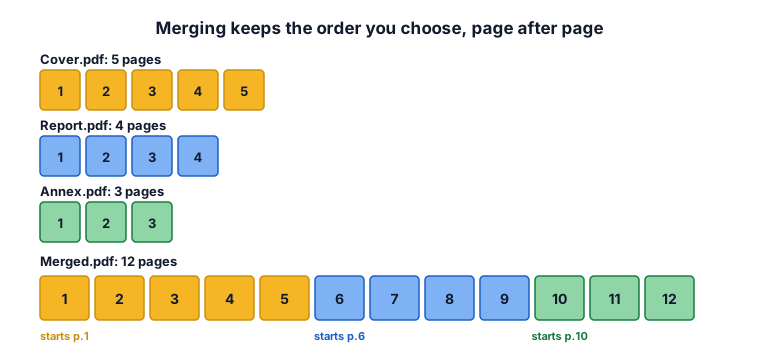
The rule: the first page of file n = 1 + the total pages of all earlier files. For Report.pdf that is 1 + 5 = 6, and for Annex.pdf it is 1 + 5 + 4 = 10. If you add a bookmark for each file, the viewer's side panel shows three entries that jump to pages 1, 6 and 10.
Changing the order changes every number. If Annex.pdf comes first, it takes pages 1 to 3, Cover.pdf pages 4 to 8 and Report.pdf pages 9 to 12. This is the most common merge mistake, so scroll through the result once before you send it.
Worked example 2: pages of different sizes (A4 and Letter)
A PDF stores the size of each page, so a merged file can contain A4 pages and Letter pages side by side. On screen it looks untidy, and when you print it the printer may shrink or cut some pages. To make every page the same size you have to fit each page onto the new size without stretching it.
| Size | Millimetres | Inches | Points (1/72 inch) |
|---|---|---|---|
| A4 | 210 × 297 | 8.27 × 11.69 | 595.28 × 841.89 |
| US Letter | 215.9 × 279.4 | 8.5 × 11 | 612 × 792 |
Letter is a little wider (about 6 mm) and a lot shorter (about 18 mm) than A4. To fit a page onto a new size, the tool computes how much the page must be scaled in width and in height, and uses the smaller of the two so that nothing is cut off:
k = the smaller of (new width ÷ old width) and (new height ÷ old height)
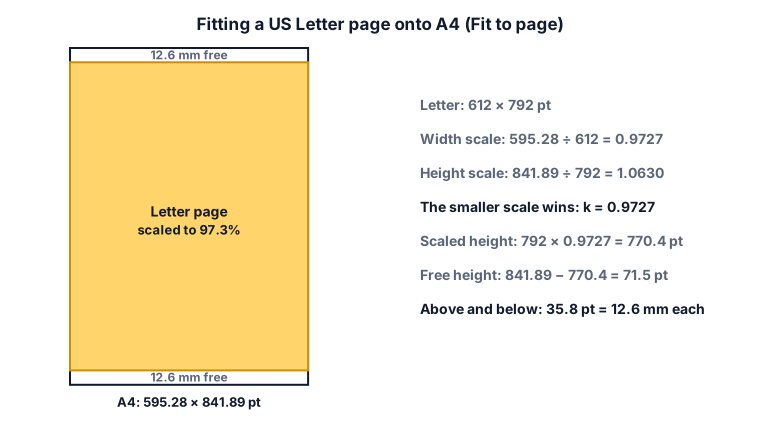
Fit one Letter page onto A4:
- Width: 595.28 ÷ 612 = 0.9727.
- Height: 841.89 ÷ 792 = 1.0630.
- The smaller one wins: k = 0.9727, so the page is drawn at 97.3% of its size.
- Scaled height: 792 × 0.9727 = 770.4 points. The A4 page is 841.89 points tall, so 841.89 − 770.4 = 71.5 points are free, which is 35.8 points (12.6 mm) above and 12.6 mm below.
Now the other way, an A4 page onto Letter: width 612 ÷ 595.28 = 1.0281, height 792 ÷ 841.89 = 0.9407. The smaller is 0.9407, so the page shrinks to 94.1% and leaves 26 points (9.2 mm) free at each side. Fitting to the shorter sheet loses a bit more, because A4 is taller than Letter.
The ZYSNOR tool offers three choices: Keep original sizes (each page stays as it is), Make all pages A4 and Make all pages Letter. A page that is wider than it is tall is placed on a landscape sheet, so a landscape slide is not squeezed onto a portrait page.
Worked example 3: adding photos
Each JPG or PNG becomes one page. The only question is how large that page is.
Take a phone photo of 4,000 × 3,000 pixels. Fit it onto an A4 landscape sheet (841.89 × 595.28 points):
- Width scale: 841.89 ÷ 4,000 = 0.2105. Height scale: 595.28 ÷ 3,000 = 0.1984.
- The smaller wins: k = 0.1984. The photo is drawn 793.7 × 595.3 points, which is 11.02 × 8.27 inches.
- Its effective resolution is 4,000 pixels ÷ 11.02 inches = about 363 dpi, plenty for printing.
With Keep original sizes the tool makes the page the size of the photo, with the longer side limited to 1,200 points (16.67 inches): k = 1,200 ÷ 4,000 = 0.3, so the page is 1,200 × 900 points and the effective resolution is 4,000 ÷ 16.67 = 240 dpi. A photo smaller than that is never enlarged: an 800 × 600 pixel image becomes an 800 × 600 point page. The photo itself is not made smaller by either choice. A 3 MB JPG adds about 3 MB to the merged file, which is why a merge of ten phone photos can easily be 30 MB. To make such a file smaller, compress it afterwards.
Photos of documents are easier to read when taken straight on, in good light, with the page filling the frame. If a photo is sideways, rotate it before merging.
Worked example 4: double-sided printing
When you print double-sided, pages 1 and 2 share one sheet, pages 3 and 4 the next, and so on. A file should start on a front side, which means on an odd page number. If a file has an odd number of pages, the next file would start on the back of a sheet.
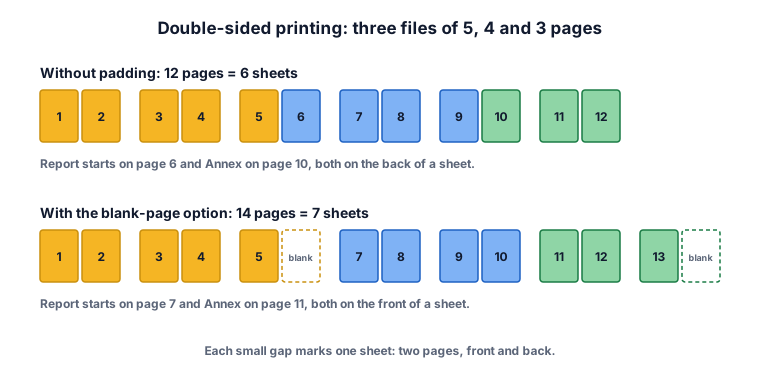
Using example 1 (5, 4 and 3 pages): Cover.pdf has 5 pages, so Report.pdf starts on page 6, the back of the third sheet. Then Report.pdf ends on page 9, so Annex.pdf starts on page 10, again a back side. The 12 pages need 6 sheets.
Now add a blank page after each file with an odd page count (the tool's last option). Cover.pdf becomes 6 pages, Report.pdf stays 4, Annex.pdf becomes 4. Report.pdf starts on page 7 and Annex.pdf on page 11, both front sides. The merged file has 6 + 4 + 4 = 14 pages, which is 7 sheets: one extra sheet buys clean starts.
If you only read the file on a screen, leave this option off. Blank pages add nothing there.
Worked example 5: will the merged file fit?
You must send five PDFs as one file by email. Their sizes are 3.2, 4.1, 1.8, 6.5 and 2.4 MB. Merging copies everything, so expect about the sum:
3.2 + 4.1 + 1.8 + 6.5 + 2.4 = 18.0 MB.
Email carries an attachment as text, which makes it about one third larger, so 18.0 MB becomes 18.0 × 4 ÷ 3 = 24.0 MB. That passes a 25 MB limit by one megabyte, but it fails a 20 MB limit. The largest file that fits a 20 MB limit is 20 × 3 ÷ 4 = 15 MB, so the file must be at least 3 MB smaller (3 ÷ 18 = about 17% smaller). A simple way is to merge, then run Compress PDF on the result.
| Service | Limit |
|---|---|
| Gmail (personal accounts) | 25 MB; Workspace accounts follow the administrator's limit |
| Yahoo Mail | 25 MB in total for all attachments in one email |
| Outlook.com | 20 MB for the whole email, attachments included |
| iCloud Mail | 20 MB per message (up to 5 GB with Mail Drop turned on) |
What the ZYSNOR Merge PDF tool actually does
The tool runs in your browser, so your files are not uploaded. The PDF engine is loaded when you open the page, so you need an internet connection to start; after that the files are joined on your device.
- You choose two or more files. PDF, JPG and PNG can be mixed, and the order of the list is the order of the result.
- Page size: Keep original sizes, Make all pages A4 or Make all pages Letter (section 5).
- Bookmark for each file (on by default): one bookmark per file, named after the file and pointing at its first page.
- Blank page after files with an odd page count (off by default): for double-sided printing (section 7).
- Limits: up to 20 files and 100 MB in total, and the PDFs must not be password-protected. If a file is protected the tool names it and asks you to save a copy without the password first.
Mistakes that waste time
- Merging in the wrong order. Check the list before you press Merge, and scroll through the result afterwards.
- Leaving mixed page sizes. If the file will be printed or uploaded to a portal that expects one size, make all pages A4 or Letter.
- Merging before a signature. A digital signature belongs to the file that was signed. A merged file is a new file, so merge first and sign afterwards.
- Merging forms you still need to fill in. Fill the forms first or merge first and then fill the result; do not assume the fields will keep working after a merge.
- Using a password-protected file. Remove the password in a PDF viewer first (print or save a copy without it). Adobe's web tool also cannot combine secured or password-protected files.
- Sending a huge merged file. Check the total size first (section 8).
Other ways to do it
- Adobe Acrobat. The Combine Files tool shows page thumbnails; you drag and drop them to reorder the pages. It can also combine Word, Excel, PowerPoint and other file types into the merged PDF.
- Mac Preview. Open both PDFs, show the thumbnails in the sidebar and drag the pages from one into the other.
- Split afterwards. If you merge too much, our Split PDF tool takes selected pages out again, and Remove PDF Pages deletes the ones you do not need.
Words you may meet
- Merge / combine: join the pages of several files into one document.
- Page tree: the ordered list of pages inside a PDF.
- Cross-reference table: the index of where each object is stored in the file.
- Point: the PDF unit of length, 1/72 inch. A4 is 595.28 × 841.89 points.
- A4 / Letter: A4 is 210 × 297 mm (the ISO standard); Letter is 8.5 × 11 inches (used in the US and Canada).
- Bookmark: an entry in the viewer's side panel that jumps to a page.
- Duplex: printing on both sides of the sheet.
- Base64: the way email carries attachments as text; it makes them about one third larger.
Check your answer in 10 seconds
- Is the first page of each file where you expect it (previous total + 1)?
- Are all pages the same size, if they need to be?
- Is the total size below the limit with one third added for email?
- Did you keep the original files in case you need to change the order later?
Practice problems
Problem 1. You merge a 7-page contract, a 2-page schedule and a 10-page appendix, in that order. On which page does the appendix start, and how many pages does the file have?
Show the worked answer
The appendix starts after 7 + 2 = 9 pages, so on page 10. The total is 7 + 2 + 10 = 19 pages.
Problem 2. The three files in problem 1 are printed double-sided with the blank-page option on. How many pages and sheets does the file have?
Show the worked answer
The contract (7 pages) gets one blank page and becomes 8. The schedule (2) stays 2. The appendix (10) stays 10. Total 8 + 2 + 10 = 20 pages = 10 sheets. The schedule then starts on page 9 and the appendix on page 11, both odd, so both start on a front side.
Problem 3. You fit an A4 portrait page onto US Letter. By what factor is it scaled and how much space is left at each side?
Show the worked answer
Width: 612 ÷ 595.28 = 1.0281. Height: 792 ÷ 841.89 = 0.9407. The smaller is 0.9407. The scaled width is 595.28 × 0.9407 = 560 points, so 612 − 560 = 52 points are free, which is 26 points (about 9.2 mm) on each side.
Problem 4. You merge four PDFs of 5.2, 3.8, 4.4 and 2.1 MB and must send them through Outlook.com (20 MB limit). Does it fit, and by how much must the file shrink?
Show the worked answer
Merged size is about 5.2 + 3.8 + 4.4 + 2.1 = 15.5 MB. Email adds a third: 15.5 × 4 ÷ 3 = 20.67 MB, which is over 20 MB. The largest file that fits is 20 × 3 ÷ 4 = 15 MB, so the file must lose at least 0.5 MB, which is 0.5 ÷ 15.5 = about 3.2%. Running Compress PDF on the merged file is enough.
Ready to try it on your own files? The free Merge PDF tool does the work in your browser, and now you know what each option does.