

Glossary · CAD and BIM
What is a Layer in AutoCAD? Meaning, Example and How It Works
In simple words
A layer in AutoCAD is a named group for objects of the same kind, such as walls, doors or text. Each layer sets default colour, linetype and lineweight, and can be turned off, frozen or locked. CAD drafters, CAD managers and engineers set up and use layers in every AutoCAD drawing.
Why it matters
Layers control what is shown, what can be edited and what is plotted. They are also how a takeoff tool or a filter picks "all walls" or "all doors" in one step.
How it works
Every object sits on one layer. When an object's colour, linetype and lineweight are set to ByLayer, it takes them from its layer, so changing the layer changes every object on it. Layers are managed in the Layer Properties Manager (the LAYER command), where each one can be turned on or off, frozen or thawed, locked or unlocked, and set to plot or not plot. Layer 0 cannot be deleted or renamed. Defpoints, the current layer, and layers used by objects, blocks or xrefs cannot be deleted either.
Types
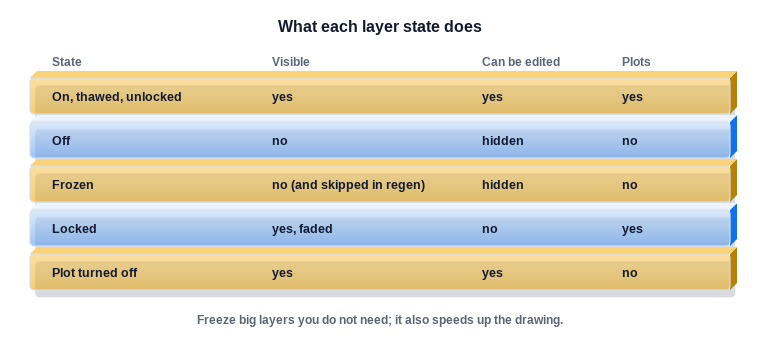
- Off: hides the layer; it is not plotted, but it is still regenerated.
- Freeze: hides it and leaves it out of regeneration, which is faster in large drawings. In a layout, a layer can also be frozen in one viewport only.
- Lock: the objects stay visible (faded) and can be snapped to, but cannot be changed.
- Plot off: the layer stays on screen but does not print, useful for construction lines and notes to self.
Naming layers
A naming standard makes drawings from different people work together. A common format, used by the AIA CAD Layer Guidelines, puts the discipline first, then a major group and an optional minor group. ISO 13567 sets out a similar structured scheme for international use.
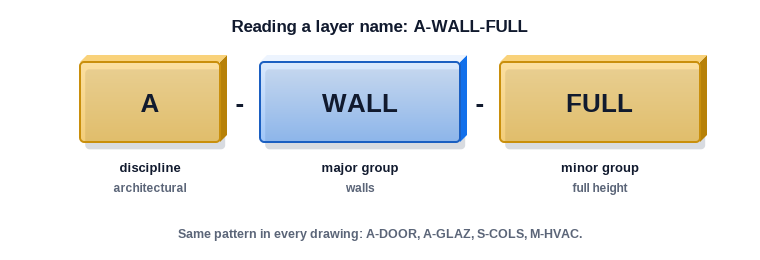
Worked example: why clean layers matter for quantities
A takeoff selects every wall line on layer A-WALL and finds 114.0 m. A further 6.0 m of wall was drawn on layer 0 by mistake.
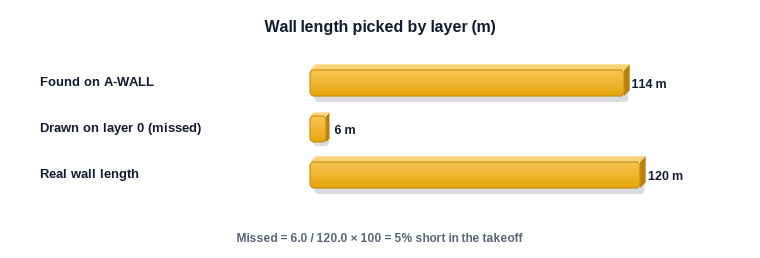
- Real wall length: 114.0 + 6.0 = 120.0 m
- Shortfall: 6.0 / 120.0 × 100 = 5%
- At a wall height of 3.00 m, the missing area is 6.0 × 3.00 = 18.0 m² of blockwork and plaster on each face.
Step by step: setting up layers for a drawing
- Start from a template (DWT) that already holds the office layer list.
- Create any extra layers with names that follow the same standard.
- Set colour, linetype and lineweight on the layer, and leave objects ByLayer.
- Set the right layer current before drawing, or move objects later with the layer list or LAYMCH.
- Before issue, check with LAYISO or LAYWALK that every object sits on the right layer, and PURGE empty layers.
Common mistakes
- Drawing everything on layer 0 or on one layer, so nothing can be filtered.
- Overriding colour or linetype object by object instead of using ByLayer.
- Different names for the same thing in different drawings (A-WALL, WALLS, Wall-new).
- Using Off when Freeze is meant, so a large drawing stays slow.
- Deleting a layer's objects but leaving the empty layer in the list.
Related terms
- CAD and BIMGlossary term
Block (AutoCAD)
A block in AutoCAD is one or more objects combined into one named object, such as a door or a title block. The definition is stored once; every copy you place points to it, so editing the definition updates all copies.2 min read · Added 20 Nov 2026 - CAD and BIMGlossary term
Xref (external reference)
An xref (external reference) is another drawing file linked into the current AutoCAD drawing. It is displayed but not copied in, so when the source drawing changes, the xref updates when the drawing is reopened or the xref is reloaded.1 min read · Added 20 Nov 2026 - CAD and BIMGlossary term
DWG file
DWG is the native drawing file format of AutoCAD. It stores 2D and 3D geometry, layers, blocks, text, dimensions, layouts and drawing information. It is owned by Autodesk and is one of the most widely used formats for sharing CAD drawings.1 min read · Added 20 Nov 2026 - CAD and BIMGlossary term
Annotation scale
Annotation scale is the AutoCAD setting that makes text, dimensions and other notes print at the same size on paper, whatever the drawing scale. Objects set as annotative resize themselves to match the scale of the view.2 min read · Added 20 Nov 2026
Frequently asked questions
What is the difference between Off and Freeze?
Both hide the layer; a frozen layer is also left out of regeneration and zoom extents.
Why can't I delete a layer?
It may be layer 0 or Defpoints, the current layer, used by objects or blocks, or used in an xref.
What does ByLayer mean?
An object set to ByLayer takes its colour, linetype and lineweight from its layer, so changing the layer changes every such object at once.