

Glossary · Photo, video and media
What is a Pixel? Meaning, Resolution and Worked Example
In simple words
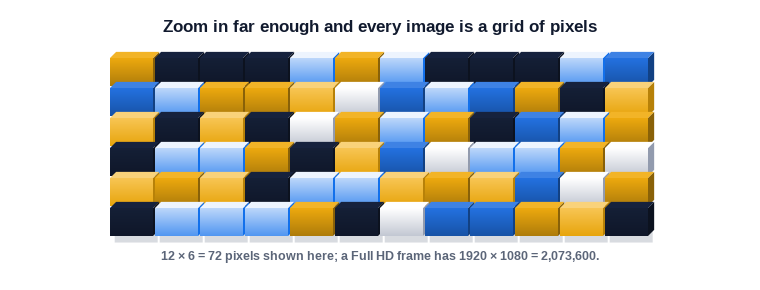
A pixel (short for "picture element") is the smallest dot of colour in a digital image or on a screen. Images are grids of millions of pixels; the more pixels, the more detail the image can hold.
Each pixel holds one colour. On a screen, each pixel is made of tiny red, green and blue parts (subpixels) whose brightness mixes into the colour you see; in an image file, each pixel is stored as numbers.
What a pixel stores
In the most common format, 8-bit RGB, each pixel has three numbers from 0 to 255: one each for red, green and blue.
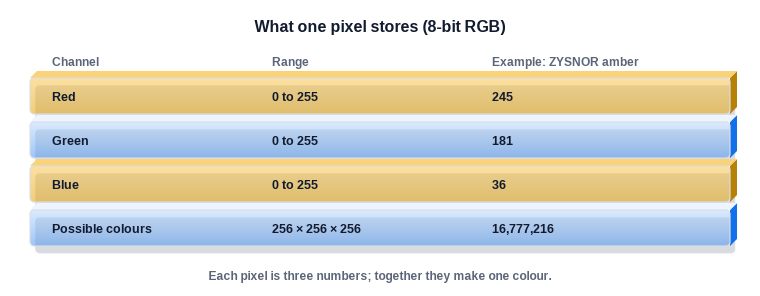
Check the count: 256 × 256 = 65,536, and 65,536 × 256 = 16,777,216 colours. Images with transparency add a fourth number (alpha) for how see-through each pixel is.
Worked examples
- Full HD image: 1920 × 1080 = 2,073,600 pixels, about 2.1 megapixels (one megapixel is one million pixels).
- Uncompressed size of that image at 3 bytes per pixel: 2,073,600 × 3 = 6,220,800 bytes, about 6.2 MB. Formats such as JPEG, PNG and WebP compress it to much less.
- Print size: an image 3000 pixels wide printed at 300 pixels per inch (PPI) is 3000 ÷ 300 = 10 inches (25.4 cm) wide.
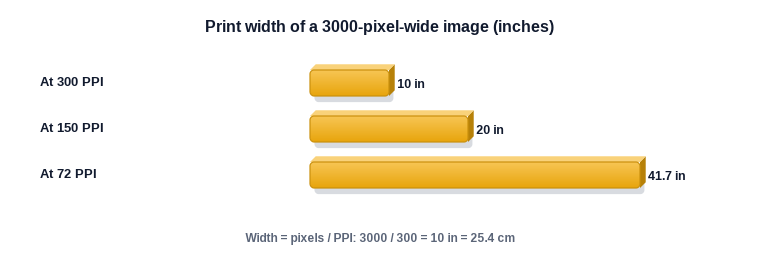
At 150 PPI the same image prints 3000 / 150 = 20 inches wide, and at 72 PPI 3000 / 72 = 41.7 inches, but each inch then holds fewer pixels and looks softer up close.
PPI and DPI
PPI (pixels per inch) describes an image or a screen. DPI (dots per inch) describes a printer, which uses many small ink dots to reproduce each pixel. The two are often mixed up in forms and software.
Step by step: getting an image to an exact pixel size
- Check the current size in pixels (width × height).
- Check the required size and whether its shape (aspect ratio) matches.
- Crop first if the shape differs, then resize to the exact pixels.
- Reduce, do not enlarge, where possible: enlarging cannot add detail.
- Save in a suitable format and check the file size limit.
Common mistakes
- Enlarging a small image and expecting more detail; it only gets blurry.
- Confusing PPI (image) with DPI (printer dots).
- Changing only the width or height and stretching the image.
- Thinking a bigger file always means more pixels; compression and format matter too.
Related terms
- Photo, video and mediaGlossary term
Resolution (HD, 4K)
Resolution is the number of pixels in an image or screen, written as width × height, for example 1920 × 1080. More pixels can show more detail, but the file is also bigger.2 min read · Added 20 Nov 2026 - Photo, video and mediaGlossary term
Aspect ratio
Aspect ratio is the relationship between the width and the height of an image, screen or video, written as two numbers such as 16:9 or 1:1. It describes the shape, not the size: a small and a large 16:9 image have the same shape.2 min read · Added 20 Nov 2026
Frequently asked questions
What is a megapixel?
One million pixels.
Does a bigger file always mean more pixels?
No. File size also depends on compression and format.