

You saved an image from a website and the form or program you need refuses the .webp file. Converting fixes that in seconds. This guide shows which format to choose, why the new file is usually bigger, and what happens to transparent backgrounds.
Why WebP files cause trouble
Google made WebP for the web: its lossless images are 26% smaller than PNGs and its lossy images 25-34% smaller than comparable JPEGs. All major browsers show WebP, but some older programs, upload forms and print services still only accept JPG or PNG. That is when you convert.
JPG or PNG?
JPEG uses lossy compression and suits photos; PNG is lossless and larger, and keeps transparent backgrounds. So: a photo becomes JPG; a logo, icon, screenshot or anything with a see-through background becomes PNG.
Why the converted file is bigger
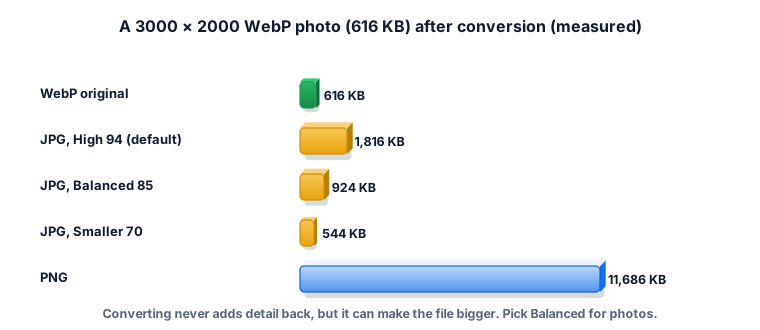
Converting cannot restore detail the WebP already dropped, and the new format is less efficient. Our 602 KB WebP photo became 1,773 KB as JPG at the default High 94, 903 KB at Balanced 85, 531 KB at Smaller 70, and 11,413 KB as PNG. For photos, Balanced 85 looks the same on screen at half the size of High.
Transparent backgrounds
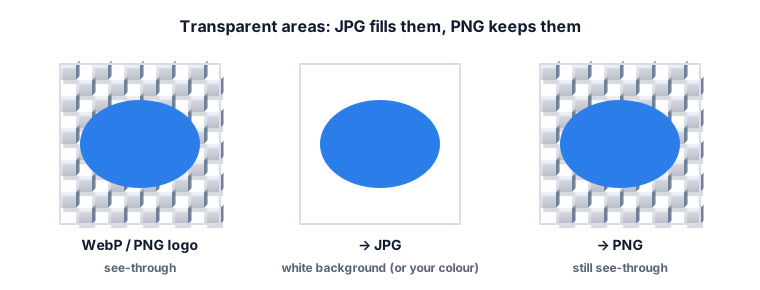
JPG has no transparency, so transparent areas are filled with a colour (white by default; you can pick another). PNG keeps them. Our transparent logo came out with a white background as JPG and see-through as PNG.
Worked example 1: a photo for an upload form
The form accepts JPG up to 1 MB and your WebP photo is 3000 × 2000. JPG at High 94 would be about 1.8 MB, too big. Balanced 85 gave 903 KB, which fits. If it still does not, resize to 2000 pixels wide.
Worked example 2: a logo for a document
Choose PNG. The background stays transparent, so the logo sits cleanly on a coloured page. Our 800 × 600 logo was 15 KB as PNG.
Worked example 3: a logo on a dark slide, but JPG required
Choose JPG and set the background colour to the slide colour, so there is no white box around the logo.
Worked example 4: twenty images at once
Choose up to 20 WebP files. They are converted with the same settings and come back as one ZIP; each file keeps its name with the new extension.
Worked example 5: maximum quality
Maximum (100) makes the largest JPG and still cannot add back detail the WebP lost. Use it only if a print service demands it.
What the ZYSNOR converter does
- Input: up to 20 WebP images, each up to 6,000 pixels per side and 24 megapixels.
- Output: JPG (quality 70, 85, 94 or 100, background colour for transparent areas) or PNG.
- Size: width and height never change.
- Converted in your browser; your images are not uploaded.
Mistakes that waste time
- Converting photos to PNG. Huge files: 11.4 MB in our test.
- Leaving High quality for a size-limited form. Try Balanced 85 first.
- Expecting better quality. Conversion changes the format, not the detail.
Words you may meet
- WebP: Google's image format for the web, lossy or lossless, with transparency.
- Transparency (alpha): see-through areas of an image.
- Quality: how much detail a JPG keeps; higher means larger files.
Practice problems
Problem 1. A transparent sticker must stay see-through. Which format?
Show the worked answer
PNG. JPG would fill the background.
Problem 2. A 400 × 300 WebP converted to JPG. What size in pixels?
Show the worked answer
400 × 300. Only the format changes.
Problem 3. Your converted JPG is 1.8 MB; the limit is 1 MB. What two things can you try?
Show the worked answer
Convert again at Balanced 85 or Smaller 70, or resize the image to fewer pixels.
Ready to convert your own file? The free WebP converter works in your browser, and the button in the page header takes you straight to it.