

A form wants a 600 × 600 photo, a website wants images 1200 pixels wide, a profile picture must be square. This guide shows how to get exact pixel sizes without squashing faces, how to work out the other side, and how format and quality change the file size.
Pixels, not centimetres
A digital image is a grid of pixels. Resizing changes how many pixels there are. Making an image smaller throws pixels away and stays sharp; making it bigger invents new pixels and looks soft. So resize down whenever you can, and start from the largest original you have.
The three fit modes
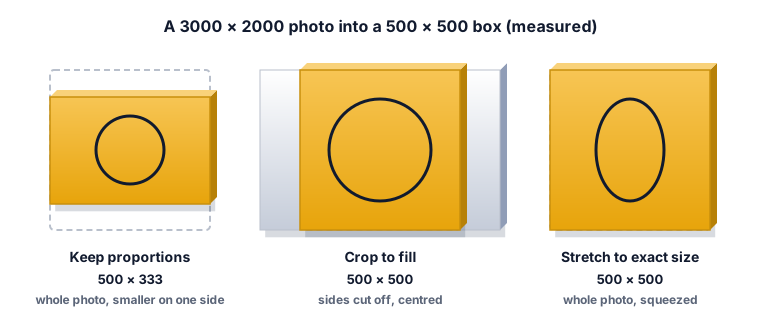
Keep proportions fits the whole picture inside the size you give; one side can come out smaller than the box. Crop to fill gives exactly the size you asked for by trimming the edges around the centre. Stretch to exact size forces both sides and can make round faces oval. We measured a 3000 × 2000 photo in a 500 × 500 box: 500 × 333, 500 × 500 cropped, and 500 × 500 squeezed.
Working out the other side
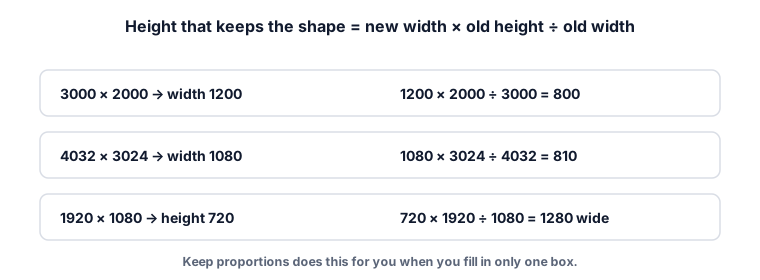
Fill in one box only and Keep proportions works out the other. To check it yourself: new height = new width × old height ÷ old width. 3000 × 2000 to width 1200 gives 1200 × 2000 ÷ 3000 = 800, which is what the tool produced.
Format and quality
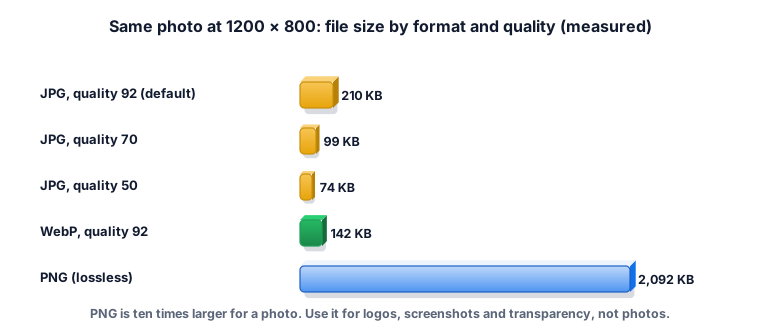
JPEG is lossy: it makes files smaller but can lower quality; PNG is lossless and larger, and only PNG of the two keeps transparency. Google reports WebP lossy images as 25-34% smaller than comparable JPEGs. Our 1200 × 800 photo was 205 KB as JPG at the default quality 92, 97 KB at 70, 73 KB at 50, 139 KB as WebP, and 2,043 KB as PNG. For photos choose JPG or WebP; for logos, screenshots and transparent images choose PNG.
Worked example 1: a square profile photo
Enter 500 and 500, choose Crop to fill. The tool trims the sides of a landscape photo from the centre. If the face is not in the centre, crop it first in your photo app so it is.
Worked example 2: images for a website
A blog wants images 1200 pixels wide. Enter 1200 in Width only, Keep proportions, WebP or JPG at 80 to 92. A 3000 × 2000 photo becomes 1200 × 800 and drops from 1.5 MB to about 140 to 200 KB.
Worked example 3: an exact size for a form
A visa form asks for 600 × 600 pixels. Crop to fill gives exactly 600 × 600. If the form also has a KB limit, finish with the photo size guide.
Worked example 4: half size for a batch
Choose Scale by percent and 50. Every image keeps its shape: our 3000 × 2000 photo became 1500 × 1000. All images in the batch get the same percentage and come back as one ZIP.
Worked example 5: a logo with a transparent background
Keep the format as PNG (or WebP). If you choose JPG, transparent areas become white: our logo saved as JPG had a white corner, the PNG stayed see-through.
What the ZYSNOR Image Resizer does
- Input: JPG, PNG or WebP, up to 20 images per run.
- Size: width and height in pixels, or 1 to 400 percent; output up to 6,000 pixels per side and 24 megapixels.
- Fit: Keep proportions, Crop to fill (centred) or Stretch.
- Output: keep the format, or JPG, PNG or WebP; quality 40 to 100 for JPG and WebP (default 92).
- Processed in your browser; your images are not uploaded.
Mistakes that waste time
- Stretching faces. Use Crop to fill for exact sizes.
- Enlarging a small image. It will look soft. Find a larger original.
- Saving photos as PNG. Ten times the size for no visible gain.
- Resizing a resized copy. Each JPG save loses a little; always start from the original.
Words you may meet
- Aspect ratio: width divided by height, such as 3:2 or 16:9.
- Lossy / lossless: compression that throws some detail away / keeps every pixel.
- Megapixel: one million pixels; 3000 × 2000 is 6 megapixels.
Practice problems
Problem 1. A 4000 × 3000 photo resized to width 1600 with Keep proportions. Height?
Show the worked answer
1600 × 3000 ÷ 4000 = 1200.
Problem 2. The same photo into an 800 × 800 box with Keep proportions?
Show the worked answer
Scale = smaller of 800 ÷ 4000 = 0.2 and 800 ÷ 3000 = 0.267, so 0.2: 800 × 600.
Problem 3. And with Crop to fill?
Show the worked answer
Scale = larger, 0.267: drawn at about 1067 × 800, then about 133 pixels are cut from each side: 800 × 800.
Ready to resize your own image? The free Image Resizer works in your browser, and the button in the page header takes you straight to it.