

A wrong date in a letter, a form without fillable fields, a contract that needs your signature: many PDF jobs are small edits. This guide shows which tool does which job, how editing existing words really works, what to check after saving, and the one thing you should never use whiteout for.
Which tool for which job
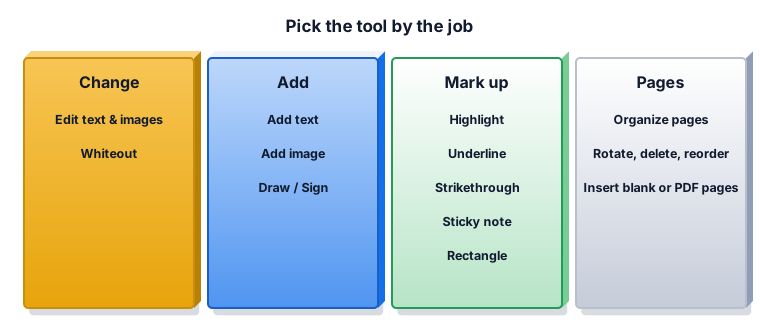
Most edits fall into four groups. Change what is there (Edit text & images, Whiteout). Add something new (Add text, Add image, Draw / Sign). Mark up for review (Highlight, Underline, Strikethrough, Sticky note, Rectangle). Work on pages (Organize pages: rotate, delete, reorder, add a blank page or pages from another PDF).
How changing existing words works
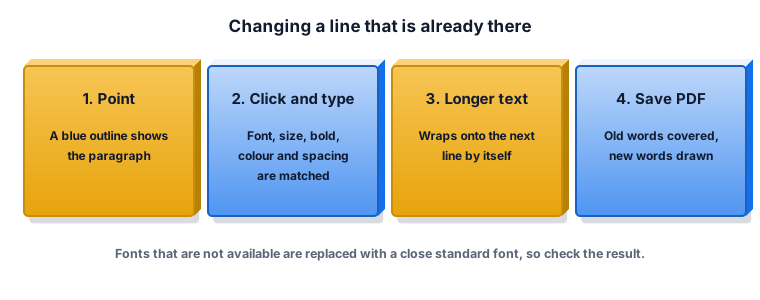
Point at the words and a blue outline shows the whole paragraph. Click and type. The editor matches the size, bold, italic, colour, line spacing and alignment it finds, and longer text wraps onto the next line. When you save, it covers the old words with the page background and draws your new words on top in a standard font (Helvetica, Times or Courier). If the original used an unusual font, the new words will look close but not identical, so read the result.
Covering is not removing
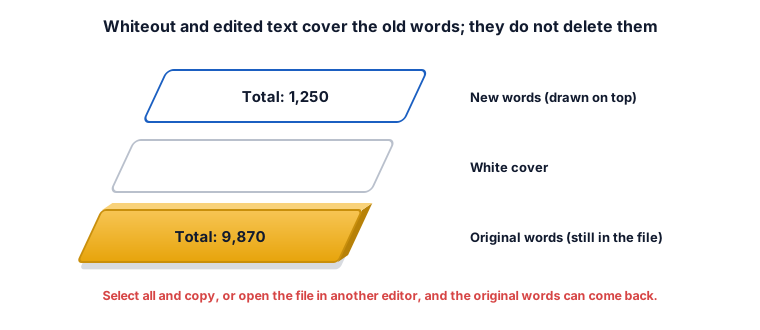
This is the most important point in this guide. Whiteout and edited text put a white box over the old content. The old words stay in the file underneath. Anyone can select all and copy, search the file, or open it in another editor and get them back. Adobe lists hidden text, deleted or cropped content and metadata as places where sensitive data can remain in a PDF. So never use whiteout to hide an account number, a salary or a name that must not be seen. Use a real redaction tool, which removes the content itself, and check the result by searching for the word.
Worked example 1: fix a date in a letter
The letter says 12 March and should say 21 March. Click the line, select 12, type 21 and save. The rest of the paragraph keeps its look. The old "12" is still in the file under the cover; for a date that is harmless.
Worked example 2: fill a form that has no fields
Choose Add text, click on each line of the form and type. Set the font and size in the Format panel before you start so every answer matches. Press Esc after each answer. Use Preview & print to check that nothing overlaps the printed lines.
Worked example 3: sign a contract
Choose Draw / Sign and sign with your mouse, pen or finger in the signature box, then move and resize it with Select & move. For a cleaner signature you can reuse, make one in the Signature Maker and add it with Add image. A drawn signature is a picture of your signature, not a certified digital signature; if the other side needs a certified e-signature, ask which service they accept.
Worked example 4: replace a logo
With Edit text & images selected, click the old logo (pictures get a dashed outline), choose Replace image and pick the new file. The old spot is covered with the page background, and you can drag or resize the new logo.
Worked example 5: text in another language
You try to add a line in Arabic or Urdu. The built-in PDF fonts only cover Latin letters, so the editor stops with a message that some letters cannot be shown, instead of saving empty boxes. For such text, write it in the program that made the document and export a new PDF.
Pages, undo and printing
Organize pages shows every page as a card: rotate, delete, drag to reorder, or add a blank page or pages from another PDF, then select Done. Undo (Ctrl+Z) and Redo (Ctrl+Y) step back and forward. Save PDF downloads a new copy; Preview & print opens the print preview with every page so you can check before printing or downloading.
What the ZYSNOR Edit PDF tool does
The editor runs in your browser, so the file is not uploaded. The PDF engine is loaded when you open the page, so you need an internet connection to start.
- File: one PDF, up to 100 MB and 300 pages, not password-protected.
- Text: edit existing words or add new text; Helvetica, Times or Courier, bold, italic, underline, lists, alignment, line and letter spacing. Latin letters only.
- Pictures: add PNG or JPG (drag, paste or choose), move, resize, replace or delete pictures already in the PDF.
- Mark up and sign: highlight, underline, strikethrough, notes, boxes, freehand drawing.
- Saved how: everything is drawn into the page, and covered content stays in the file underneath.
Mistakes that waste time
- Using whiteout for private data. See section 3.
- Not reading the edited line. A substitute font can change line length; check the wrap.
- Editing a scan. A scanned page is a picture, so there are no words to click. Cover and type, or OCR it first.
- Treating a drawn signature as a certified one. See example 3.
Other ways to do it
- Edit the source file (Word, Google Docs) and export a new PDF: the cleanest result for large changes.
- Desktop PDF editors such as Adobe Acrobat can also redact properly.
- ZYSNOR: free, no sign-up, and the file stays on your device.
Words you may meet
- Whiteout: a white box drawn over content.
- Redaction: permanently removing content from the file.
- Standard fonts: 14 fonts every PDF reader knows, including Helvetica, Times and Courier.
- Flatten: draw marks into the page so they are no longer separate, editable comments.
Check your answer in 10 seconds
- Does every edited line read correctly and fit its space?
- Search the saved file for any word you meant to hide: if it is found, it is not removed.
- Is the page count and order right?
Practice problems
Problem 1. You whiteout a phone number and type "removed" on top. Can the recipient find the number?
Show the worked answer
Yes. The number is still in the file under the white box and can be copied or found by search.
Problem 2. Which tool adds a page from another PDF?
Show the worked answer
Organize pages, then add pages from another PDF and select Done.
Problem 3. The original line used a decorative serif font. Which standard family will your edit use?
Show the worked answer
A serif font is matched with Times. It will look close, not identical.
Ready to try it on your own file? The free Edit PDF tool works in your browser, and the button in the page header takes you straight to it.