

You send a contract for review and want everyone to see it is not final. You share a worksheet and want "SAMPLE" across it. This guide shows how to pick the words, set the three look options so the page stays readable, mark only the pages that need it, and what a watermark will not do.
What a watermark is
A watermark is a word or picture placed over (or behind) the content of a page, in a light tone, so the page stays readable. Adobe describes it as fixed into the page, unlike a stamp, which is a comment that readers can move or delete. In ZYSNOR the mark is drawn on top of the content as real text, in a mid-dark grey with transparency. That means a dark or busy page still shows the text underneath, but the mark is also visible on white areas.
Choosing the words
Use one short word. The tool shrinks long phrases so they fit across the page, and shrunk text is harder to read. Common choices are DRAFT (not final), CONFIDENTIAL (limit who sees it), COPY (not the original), SAMPLE (a preview) and FOR REVIEW. Capital letters read best at an angle. Avoid a person's name unless you mean it as a label for that person's copy.
Opacity, angle and size
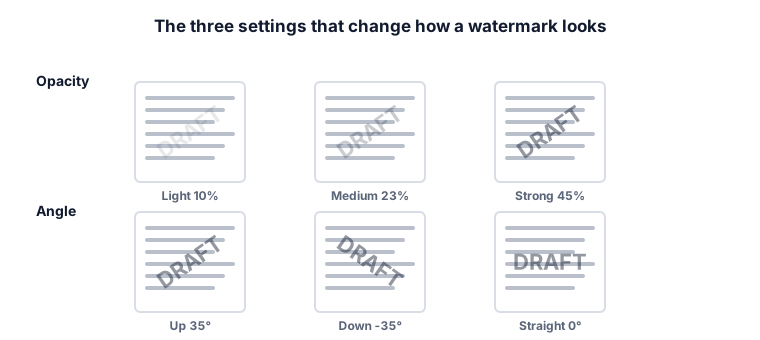
Opacity controls how strongly the mark shows. Light is 10%, Medium 23% and Strong 45%. Light is gentle on text-heavy pages but can vanish when printed; Strong is hard to miss but covers text. The angle can be 35° rising to the right, 35° falling, or straight. A rising diagonal is the usual look. Size is Small, Medium or Large, which multiplies the size the tool would pick (×0.6, ×1, ×1.4).
Worked example 1: a draft contract
A 6-page contract goes out for comments. Type DRAFT, keep Medium opacity, the 35° rising angle and Medium size, and leave the page range empty. Every page gets the mark. Check a page with a table: the table must still be readable. If it is not, change to Light.
Worked example 2: only some pages
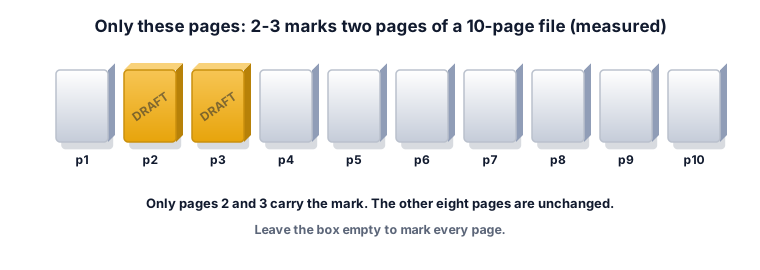
In a 10-page file only pages 2 and 3 are not final. Type 2-3 in Only these pages. We measured that pages 2 and 3 carry the mark and the other eight are unchanged. last marks only the last page, and odd every odd page. The list works as in Split PDF.
Worked example 3: accents and other languages
Accented Latin letters work as ordinary text: "Café Ünï" stayed text in our test. Text in a script the built-in font does not cover, such as Arabic, is drawn as a picture instead. We tested سري للغاية: the mark appeared and the file grew from 2.5 KB to 17.4 KB, because each page now holds the picture. The picture mark cannot be selected as text, and it is not as sharp as text when enlarged. The page that explains the tool says "standard English characters" for the cleanest result; other scripts are a fallback.
Worked example 4: a sample worksheet
A teacher shares a worksheet as a preview. Type SAMPLE, choose Strong opacity and Large size so the mark is clearly visible when the page is printed or screenshotted. The answers page is not shared, so there is nothing to protect on it. Use Light opacity only if the page is for screen reading.
Worked example 5: a printout in black and white
A mark that looks fine on screen can almost disappear on a printed page, because printers lighten faint grey. If the file is going to print, use Medium or Strong, print one page as a test, and then decide. A 10% mark is a screen mark.
What a watermark does not do
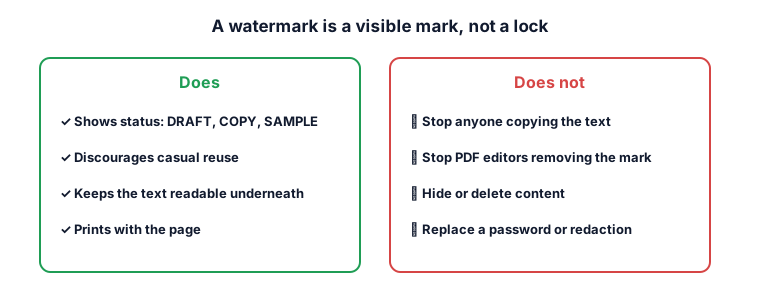
A watermark is a visible label. It does not stop copying or printing, it does not hide anything underneath, and it can be removed. Adobe's own help has a Remove command for watermarks, so any PDF editor can take it off. For text that someone must not see, use a proper redaction tool, and for access control use a password. Keep your original without the mark in a safe place, because the marked copy is the one that travels.
What the ZYSNOR Watermark PDF tool does
The tool runs in your browser, so the file is not uploaded. The PDF engine is loaded when you open the page, so you need an internet connection to start; after that the file is processed on your device.
- Text: one label, drawn centred on each chosen page, as real text for Latin letters and as a picture for other scripts.
- Opacity: Light 10%, Medium 23%, Strong 45%.
- Angle: 35° up, 35° down, or straight.
- Size: Small, Medium, Large.
- Only these pages: empty means every page; otherwise a list such as 2-3, odd or last.
- Limits: the PDF must not be password-protected, and up to 20 files or 100 MB in total are accepted per run. The mark is text only, not a logo.
- Your original file is never changed; you download a new copy.
Mistakes that waste time
- Using a long phrase. It is shrunk to fit. Use one or two words.
- Judging only on a white page. Check a page with a table, a photo or a stamp.
- Using Light for a printout. Test print a page.
- Thinking it protects the content. See section 9.
- Marking twice. Running the tool again on the marked file adds a second mark on top of the first.
Other ways to do it
- Adobe Acrobat: Edit, then Watermark, then Add. You can choose text or an image, opacity, rotation and page range, and remove the watermark later.
- Word processors can add a watermark before you export to PDF. This is useful if you still have the source file.
- ZYSNOR: free, no sign-up, and the file stays on your device.
Words you may meet
- Watermark: text or an image fixed into a page.
- Stamp: a comment on a page that readers can move or delete.
- Opacity: how solid the mark is; 100% is solid and 10% is very faint.
- Redaction: permanently removing content, which a watermark does not do.
Check your answer in 10 seconds
- Can you read the busiest page underneath the mark?
- Are only the pages you named marked?
- Is the word short enough to read at a glance?
Practice problems
Problem 1. A 12-page file where only the last page is a draft. What do you type in Only these pages?
Show the worked answer
last. That marks page 12 only.
Problem 2. You type 2-4, 3 on a 10-page file. How many pages carry the mark?
Show the worked answer
2-4 is pages 2, 3 and 4, and 3 is already included, so 3 pages carry the mark.
Problem 3. Is a CONFIDENTIAL watermark enough to stop a recipient copying the text?
Show the worked answer
No. The text stays on the page and the mark can be removed with a PDF editor. Use a redaction tool for text that must not be seen and a password for access control.
Ready to try it on your own file? The free Watermark PDF tool does the work in your browser, and the button in the page header takes you straight to it.