

You have a long report and need only the summary, a scanned book you want in chapters, or a file that is too big to email. This guide explains what splitting really does, how the page list works (with every special word), how the files are named, and how to plan a split so each part fits a size limit, with the numbers worked out so you can predict the result.
What splitting does
Splitting means taking some pages of a document and saving them as a new document. Adobe describes splitting a PDF as dividing it into smaller, separate files based on pages, bookmarks or size. Nothing is rewritten or summarised: page 5 of the original simply becomes a page of the new file.
Two related jobs get mixed up. Extracting keeps the pages you choose and gives you one new file. Splitting cuts the whole document into several files. Deleting pages removes the ones you choose and keeps the rest; Apple's Preview does this by selecting pages in the thumbnails and pressing Delete, and it removes the annotations on those pages too. ZYSNOR has a separate Remove PDF Pages tool for deleting.
Why splitting keeps the quality
A PDF stores its pages in an ordered list with the fonts and pictures each page needs. A splitting tool copies the chosen pages, with the fonts and pictures they use, into a new file and writes a new list. So text stays text (still selectable and searchable) and pictures are copied as they are. The cost is size: each new file carries its own copy of any font or picture that its pages use, so the parts can add up to a little more than the original. If you need smaller files, see How to reduce PDF file size.
How a page list works
In the ZYSNOR tool you describe the pages with a list separated by commas. Each item is one of these:
| You type | Meaning |
|---|---|
| 5 | page 5 only |
| 3-7 | pages 3, 4, 5, 6 and 7 |
| odd | pages 1, 3, 5 and so on |
| even | pages 2, 4, 6 and so on |
| last (or end) | the final page; it also works in a range, such as 8-last |
Two rules often surprise people. First, a page that you name twice is used once. Second, in the Extract chosen pages mode the pages are saved in their original order, whatever order you typed them in. If you need a different order, extract first and then reorder pages in a PDF editor.
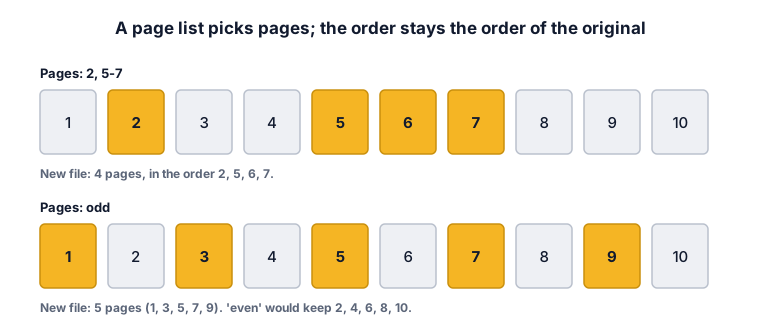
Worked example 1: extract chosen pages
A 10-page file, and you type 2, 5-7. Item 1 is page 2. Item 2 is the range 5 to 7, which is 7 − 5 + 1 = 3 pages. The new file has 1 + 3 = 4 pages: 2, 5, 6 and 7. With odd you get pages 1, 3, 5, 7 and 9 (5 pages); with even you get 2, 4, 6, 8 and 10 (5 pages).
Worked example 2: a mistake with overlapping ranges
You type 1-3, 2-4 on a 12-page file and expect 3 + 3 = 6 pages. The result has only 4 pages (1, 2, 3, 4), because pages 2 and 3 are named twice and used once. Count the pages in your list as a set, not as a sum.
The same idea explains 7, 2: you get pages 2 and 7, in that order, not 7 and 2.
Worked example 3: using last
On a 12-page file, 8-last means pages 8 to 12 (5 pages), and 1, last means pages 1 and 12 (a cover and a back page). Because the tool reads the real page count, the same list works on a file of any length. A number above the page count, such as 15 on a 12-page file, is refused with a message that names the valid range.
Worked example 4: files of N pages
You have 23 pages and choose files of 5. The number of files is ⌈23 ÷ 5⌉ = ⌈4.6⌉ = 5. The first four files hold pages 1-5, 6-10, 11-15 and 16-20; the last holds 21-23 (3 pages). Check: 4 × 5 + 3 = 23. The ZIP contains pages-01-05.pdf, pages-06-10.pdf, pages-11-15.pdf, pages-16-20.pdf and pages-21-23.pdf. The numbers are padded with zeros to the width of the page count, so the files sort correctly in a folder. A file with a single page is named page-05.pdf, not pages-05-05.pdf.
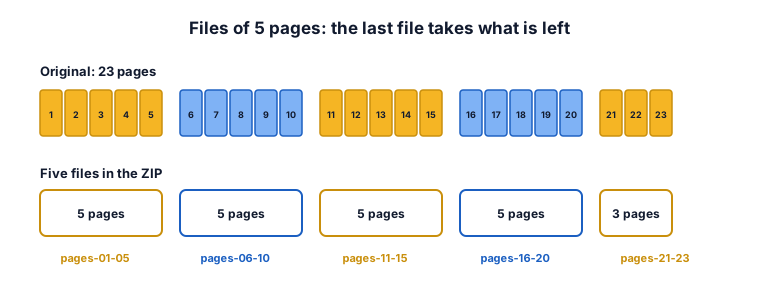
One limit: the tool will not make more than 200 files in one go, so a 1,000-page file needs at least 5 pages per file.
Worked example 5: each range as its own file
On a 10-page file you type 1-3, 5, 8-10 in the Each range as its own PDF mode. Each item becomes a file: pages 1-3 (3 pages), page 5 (1 page) and pages 8-10 (3 pages). The ZIP holds pages-01-03.pdf, page-05.pdf and pages-08-10.pdf. Pages 4, 6 and 7 are not in any file. Use this mode for chapters: write the page range of each chapter.
The mode Every page as its own PDF needs no list: a 12-page file gives 12 files, page-01.pdf to page-12.pdf.
Worked example 6: will each part fit an email?
You have a 60 MB file with 120 pages and want to email it in parts. Gmail's help page says you can send up to 25 MB in attachments in total. Email carries attachments as text, which makes them about one third larger (see the sources), so a file of x MB uses about 4/3 × x MB of the limit. For 25 MB: x ≤ 25 × 3/4 = 18.75 MB per part.
If every page weighed the same, one page is 60 ÷ 120 = 0.5 MB, so a part may hold up to 18.75 ÷ 0.5 = 37.5, that is 37 pages. Three parts of 40 pages would be 20 MB each, too big. Four parts of 30 pages are 15 MB each and fit. Choose files of 30 pages.
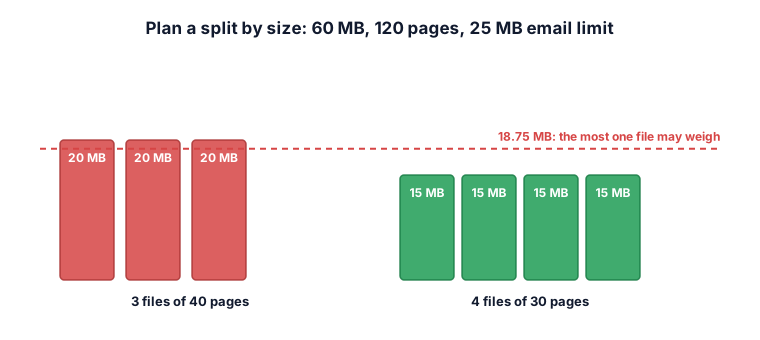
This is an estimate. Scanned pages with big pictures weigh much more than text pages, so a part with many pictures may be heavier than planned. Open the ZIP and look at the real sizes before you send, and compress any part that is still too big.
What the ZYSNOR Split PDF tool actually does
The tool runs in your browser, so the file is not uploaded. The PDF engine is loaded when you open the page, so you need an internet connection to start; after that the file is processed on your device.
- Extract chosen pages (one PDF): saves the pages in your list as one new PDF, in original order, duplicates removed.
- Each range as its own PDF (ZIP): one file per comma-separated item.
- Every page as its own PDF (ZIP) and Split into files of N pages (ZIP): no list needed.
- You can also click pages in the thumbnails below the form instead of typing numbers.
- Limits: the PDF must not be password-protected (the tool names the file and asks you to save a copy without the password first), and a split makes at most 200 files.
- Your original file is never changed.
Mistakes that waste time
- Counting overlapping ranges as a sum. See example 2.
- Expecting your typed order. Extract keeps the original order.
- Splitting by pages when the limit is in megabytes. Plan with the size, as in example 6, then check the real files.
- Forgetting the printed page numbers. A book's page 1 is often PDF page 9 or later. Use the page numbers the PDF viewer shows, not the numbers printed on the paper.
- Not looking at the result. Open the new file and check the first and last page.
Other ways to do it
- Adobe Acrobat: in Organize pages, Split lets you divide by number of pages, maximum file size or top-level bookmarks, and its output options control file names and the save folder. Splitting by file size is something to look for if your limit is in megabytes. It is part of a paid product.
- Mac Preview: delete the pages you do not want in the thumbnails sidebar and export the rest, or drag thumbnails to the desktop to create a new PDF from them.
- ZYSNOR: free, no sign-up, the file stays on your device.
Words you may meet
- Split: cut a document into several files.
- Extract: save chosen pages as a new file.
- Page range: two page numbers joined by a dash, such as 5-7, meaning all pages from 5 to 7.
- Bookmark: an entry in the viewer's side panel that jumps to a page; Acrobat can split at top-level bookmarks.
- Base64: the way email carries attachments as text; it makes them about one third larger.
- ZIP: a single file that holds several files, so one download carries all the parts.
Check your answer in 10 seconds
- Is the page count right? Count the pages in your list as a set, without repeats.
- For files of N pages: do the parts add up to the original page count?
- Is each part below the limit, with one third added for email?
- Did you open the first and last page of the new file?
Practice problems
Problem 1. A 30-page file and the list 1-5, 10, 20-last. How many pages are in the new file?
Show the worked answer
1-5 is 5 pages, 10 is 1 page, and 20-last is 20 to 30, which is 11 pages. Total 5 + 1 + 11 = 17 pages.
Problem 2. A 47-page file is split into files of 10 pages. How many files, and how many pages in the last one?
Show the worked answer
⌈47 ÷ 10⌉ = 5 files. Four files hold 40 pages, so the last holds 47 − 40 = 7 pages. The last is named pages-41-47.pdf.
Problem 3. A 90 MB file with 150 pages must be sent in parts that each fit a 25 MB email limit. How many pages per part, if every page weighs the same?
Show the worked answer
One page is 90 ÷ 150 = 0.6 MB. A part may weigh at most 25 × 3/4 = 18.75 MB, so at most 18.75 ÷ 0.6 = 31.25, that is 31 pages. Parts of 30 pages weigh 18 MB each and 150 ÷ 30 = 5 parts, so choose 30 pages per file.
Ready to try it on your own file? The free Split PDF tool does the work in your browser, and the button in the page header takes you straight to it.