

A scan came out sideways, one landscape page sits in a portrait report, or a phone saved a page upside down. This guide explains what rotating a PDF page really changes, why only four positions exist, how turns add up on pages that are already turned, and how to fix exactly the pages that are wrong.
What rotating does
A PDF page stores its content (text, lines, pictures) and a separate number, the page's rotation. The ISO PDF standard describes it as the number of degrees by which the page is turned clockwise when displayed or printed, and requires the value to be a multiple of 90, with 0 as the default. Rotating a page changes only that number. Nothing on the page is redrawn, cut or resampled, so text stays sharp and selectable and pictures keep their quality.
This idea is old: the Rotate entry has been part of the format since PDF 1.0, and a page may also inherit it from the group it belongs to. A tool that rotates pages therefore only needs to add to the number and save the file.
Why only 90, 180 and 270
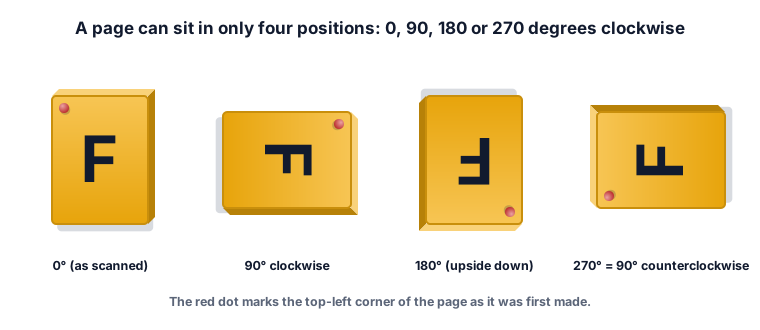
Because the standard says the value shall be a multiple of 90, a PDF page can be at 0, 90, 180 or 270 degrees and nowhere in between. A tilted scan (for example 3 degrees off) cannot be fixed by the rotation setting. It needs the picture on the page itself to be straightened, which is an image-editing job, not a page rotation. Apple's PDFKit accepts negative multiples of 90 and converts them: -90 becomes 270. That is why ZYSNOR offers 90 counterclockwise as 270.
The turns you can pick
| Page looks like this | Choose |
|---|---|
| Top of the text is on the left side | 90° clockwise |
| Top of the text is on the right side | 270° (90° counterclockwise) |
| Page is upside down | 180° |
If you are not sure, turn your head: whichever way the text then reads normally tells you the direction the page must travel.
Worked example 1: a whole scan on its side
A 12-page scan was saved with every page lying on its left side (the top of the text points left). Turning a page clockwise moves its top from the left side to the top: choose 90° clockwise, leave the page range empty, and all 12 pages are turned. If you picked 270 by mistake you would get upside-down pages, because the top would travel the wrong way round.
Worked example 2: turns add up
This is the part that surprises people. A page does not go back to zero before it turns; the tool adds your turn to the turn the page already has. We measured this on the ZYSNOR tool with four pages that start at 90°, 270°, 0° and 0°.
Turning all pages 90° gives 180°, 0°, 90° and 90° (270 + 90 = 360, which is 0). Turning all pages 180° more gives 0°, 180°, 270° and 270°. Turning 270° on pages 2 and 3 only gives 0°, 90°, 180° and 270°.
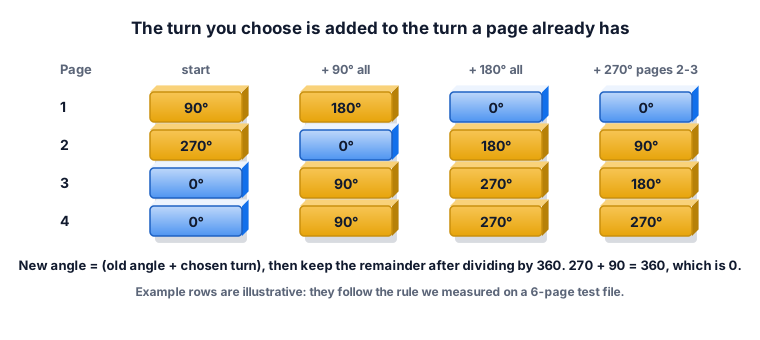
Two things follow. A page that looks right now may be at 90° or 180° in the file, so "all pages" can break pages that were already correct. And if you turn a page twice by 90°, the result is the same as one turn of 180°.
Worked example 3: only some pages
A 10-page report has page 4 as a landscape table that was scanned sideways. Type 4 in the page range and choose 90° clockwise (or 270° if it points the other way). Only page 4 changes; the other nine stay as they were.
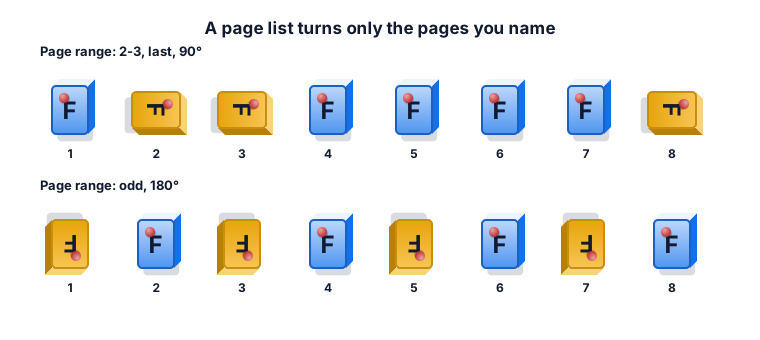
The page list works like the one in Split PDF. 2-3, last on an 8-page file turns pages 2, 3 and 8. odd turns pages 1, 3, 5 and 7. A page you name twice is turned once, not twice.
Worked example 4: double-sided scans
A feeder scans a double-sided stack and every back page comes out upside down. The back pages are the even pages, so type even and choose 180°. On a 10-page file that turns pages 2, 4, 6, 8 and 10 and leaves the front pages alone. Check one front page and one back page afterwards.
Worked example 5: a common mistake
You rotate a mixed document by 90° with the page range left empty. The sideways pages are fixed, but the pages that were already upright are now sideways. The cure is not to rotate again: that would add another 90°. Instead, start again from your original file and name only the pages that need turning, as in example 3.
What the ZYSNOR Rotate PDF tool does
The tool runs in your browser, so the file is not uploaded. The PDF engine is loaded when you open the page, so you need an internet connection to start; after that the file is processed on your device.
- Turn: 90° clockwise, 180° or 270° (90° counterclockwise).
- Page range: empty means every page; otherwise a list such as 2, 5-7, odd, even or last.
- Turn one page by hand: the page thumbnails let you turn a single page and the tool lists it (for example Page 2 → 90° clockwise).
- Limits: the PDF must not be password-protected, and up to 20 files or 100 MB in total are accepted per run.
- Your original file is never changed; you download a new copy.
Mistakes that waste time
- Rotating everything when only a few pages are wrong. See example 5.
- Turning the wrong way. Check which side the top of the text is on, then use the table in section 3.
- Trying to fix a slightly tilted scan. Page rotation only does multiples of 90; a small tilt needs the image straightened.
- Not looking at the result. Open the new file, scroll through, and check the first and last page.
- Turning only the view. Some viewers rotate only what you see on screen. Reopen the saved file to be sure the turn is really stored.
Other ways to do it
- A desktop PDF app or your system viewer usually has a rotate command in its page or thumbnail menu. Check that you save the file afterwards.
- ZYSNOR: free, no sign-up, and the file stays on your device.
Words you may meet
- Rotate (page): a number, a multiple of 90, saying how far the page is turned clockwise when shown or printed.
- Clockwise: the direction a clock's hands move.
- Landscape and portrait: a page that is wider than tall, and one that is taller than wide.
- Deskew: straightening a slightly tilted scan. It is not the same as rotating a page.
- Page range: two numbers joined by a dash, such as 5-7, meaning pages 5 to 7.
Check your answer in 10 seconds
- Does the text now read normally on every page you changed?
- Are the pages you did not name still as they were?
- Did two turns of 90° end up as one turn of 180°?
Practice problems
Problem 1. A page is at 270° and you turn it 180°. Where does it end?
Show the worked answer
270 + 180 = 450. Subtract 360: 90°.
Problem 2. A 9-page file: you turn odd pages 90° and then 1-3 by 270°. What is the angle of each of pages 1 to 4?
Show the worked answer
Odd pages 1, 3, 5, 7, 9 become 90°. Then pages 1, 2 and 3 get 270° more. Page 1: 90 + 270 = 360, so 0°. Page 2: 0 + 270 = 270°. Page 3: 90 + 270 = 0°. Page 4: unchanged, 0°.
Problem 3. You want to fix the back sides of a 14-page double-sided scan that are upside down. Which list and turn?
Show the worked answer
Back sides are the even pages: type even and choose 180°. That turns pages 2, 4, 6, 8, 10, 12 and 14, which is 7 pages.
Ready to try it on your own file? The free Rotate PDF tool does the work in your browser, and the button in the page header takes you straight to it.