

Copying text from a screenshot, a scanned page or a photo of a notice is a common job, and free OCR makes it quick. It is also easy to trust too much. This guide shows what we measured about when OCR works and when it quietly fails, and how to use the ZYSNOR Image to Text tool with that in mind.
What OCR does
OCR software looks for lines of letters in an image and decides which character each shape is. It does not understand the text, so a blurred "rn" can become "m" and no warning is given. Tesseract, the engine behind the ZYSNOR tool, is open source, and the tesseract.js library runs it inside the browser.
Text size matters most
Tesseract's own documentation advises images of about 300 dpi, with letters around 20 pixels tall. In our test the same sentence was drawn at several sizes, and we recorded the height of a lowercase x in pixels.
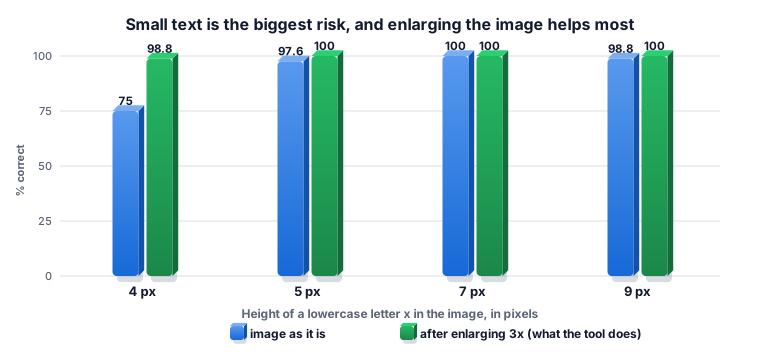
At 4 pixels the engine read 75% of the characters correctly and produced lines such as "The messing ars 10:00". At 7 pixels it was perfect. Enlarging the image before reading it helps: the Zysnor Image to Text tool enlarges small images up to three times, and with that the 4-pixel text was read at 98.8%. You can get the same effect by taking the photo closer or cropping tightly.
Enlarging only helps if the letters are still readable. Text that was blurred as well as small (12-pixel text with a blur of 2) stayed at about 30% in our test, whatever we did.
Keep the text upright
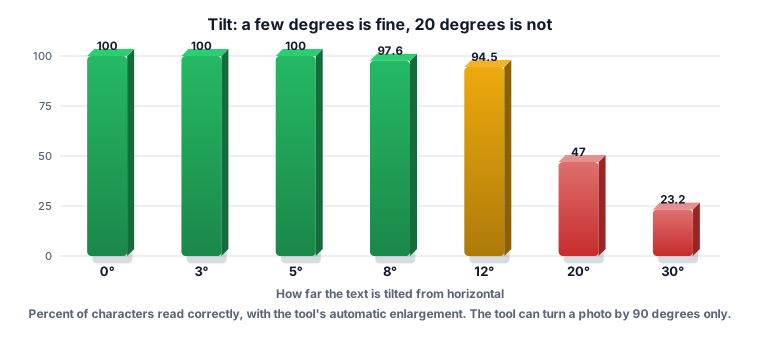
A few degrees of tilt did no harm. At 12 degrees accuracy was 94.5%, at 20 degrees it was 47%, and at 30 degrees 23%. Tesseract's documentation also notes that skew can affect how it finds lines. The ZYSNOR tool can turn an image by 90 degrees (Rotate left and Rotate right) but cannot straighten a slight tilt, so retake a tilted photo or straighten it in a photo editor first.
Blur and lighting
Light blur was harmless in our test: a blur of 1 or 2 still gave 100% on large text. A stronger blur (4) fell to about 77%. Grey text on white, white text on black, heavy JPEG compression and added noise did not hurt the large text.
Uneven lighting was the worst case. We darkened the background from white on the left to grey on the right. Fading to a mid grey gave 73.2%, fading to a dark grey gave 64%. If you photograph a page, avoid shadows from your hand or phone.
A high confidence score can still hide missing text
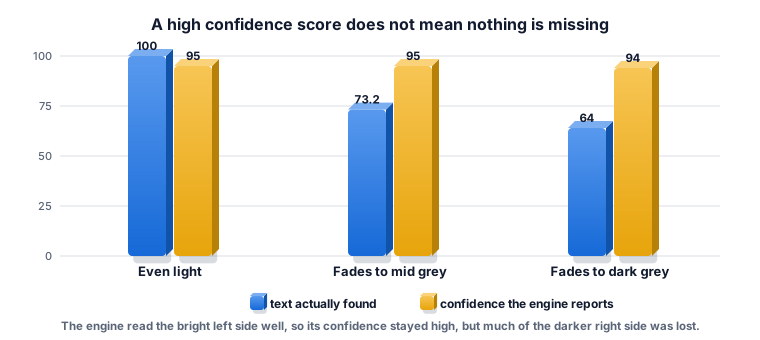
The engine reports a confidence figure for what it read. In the darkened-background tests it stayed at 94 to 95 while 27% to 36% of the characters were missing, because the engine was sure about the words it did find. The tool therefore reports the confidence only for the text that was found, so check that no lines or words are missing. Read the result against the picture, and look at the dark, blurred and tilted parts first.
Using the ZYSNOR Image to Text tool
- Choose a JPG, PNG or WebP image of up to 15 MB. The picture stays in your browser.
- Choose the language. The list has English, Arabic, Arabic and English, Urdu, Urdu and English, French, Spanish, German and Hindi. We only tested English.
- Rotate the image if needed. Drag a box over the part you want if the picture has other content, such as a photo next to a paragraph.
- Select Extract text. The first time, the engine and language data are downloaded from the internet, so you need a connection.
- Edit the text in the box. Use Copy text, or Download .txt to save it.
Tips for better results
- Zoom in when you take the photo, or crop closely, so the letters are large.
- Hold the camera square to the page and photograph in even light.
- Use a screenshot instead of a photo when the text is on a screen. Screenshots are sharp and upright.
- Read only what you need. A box around the text keeps pictures, borders and shadows out of the result.
- Proofread names, numbers and dates. A single wrong digit looks as correct as a right one.
What the tool does not do
- It does not read handwriting reliably. We did not test it, and Tesseract is designed for printed text.
- It does not keep the layout. Columns, tables and forms come out as plain lines of text.
- It does not straighten a slight tilt or remove shadows.
- It needs an internet connection the first time to load the engine and the language data.
Short glossary
- OCR: optical character recognition, turning an image of text into editable text.
- Tesseract: an open-source OCR engine.
- dpi: dots per inch, the resolution of a scan.
- x-height: the height of a lowercase x, used to measure how big letters are.
- Confidence: the engine's own estimate of how sure it is about the text it read.