

Dictation is faster than typing for most people, and it helps when typing is hard. Browser dictation is free, but it has one thing you should know first: where the audio goes.
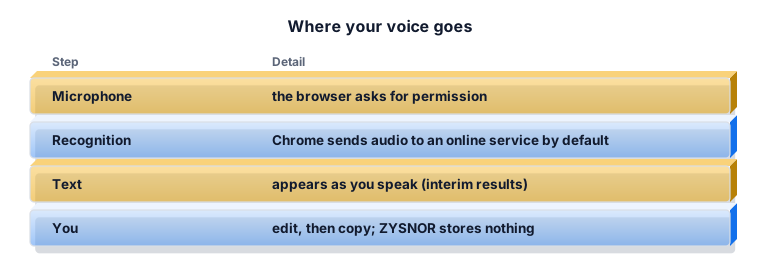
Where your voice goes
By default, browser speech recognition uses an online engine: your audio is sent to a web service and the text comes back, which is also why it does not work offline. Chrome sends it to Google's servers. Newer browsers can run recognition on the device when a page asks for it. ZYSNOR does not record your audio, and your text is not sent to ZYSNOR: the auto-save copy stays in your own browser.
Languages
The tool offers English (US and UK), Arabic, Hindi, Urdu, Bengali, Mandarin Chinese and Persian. Whether each works depends on your browser; Chrome and Edge support the most.
Punctuation by voice
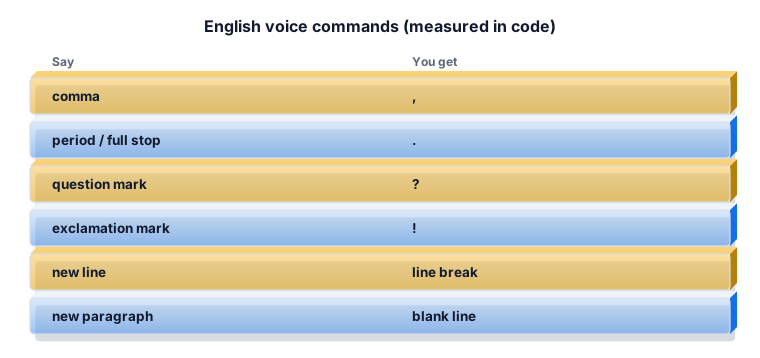
In English, say the mark: comma, period or full stop, question mark, exclamation mark, colon, new line, new paragraph. The tool replaces the words with the marks. Other languages get the text as recognised; add punctuation afterwards.
Worked example 1: a quick email
Say "hi Sara comma thanks for the file period new paragraph I will reply tomorrow period". You get "hi Sara, thanks for the file. (blank line) I will reply tomorrow." Capitalise the first word by hand.
Worked example 2: notes in Urdu
Choose Urdu and speak at a steady pace. Voice commands are English only, so add punctuation after you stop.
Worked example 3: the microphone is blocked
If the tool says the microphone is blocked, click the lock icon next to the address, allow the microphone for the site and reload.
Getting better accuracy
- Use a headset or sit close to the microphone.
- Cut background noise.
- Speak in full sentences at a steady speed.
- Check names, numbers and technical words; they are misheard most often.
What the ZYSNOR Speech to Text does
- Eight languages, live words, editable transcript.
- English voice commands for punctuation and new lines.
- No recording by ZYSNOR; the browser's service may process audio online.
Practice problems
Problem 1. Can you dictate offline in Chrome?
Show the worked answer
Usually not. Recognition runs on an online service by default.
Problem 2. What do you say to start a new paragraph?
Show the worked answer
"new paragraph" (English, with voice commands on).
Ready to try it? The free tool works in your browser, and the button in the page header takes you straight to it.